Suramya's Blog : Welcome to my crazy life…

July 4, 2012

Interesting Troubleshooting step

Filed under: Humor,My Thoughts,Tech Related — Suramya @ 11:49 PM

This is a question that has been bugging me for a while and I see most tech support people do this; both here in India and in the US and I can’t figure out how it helps, maybe one of you guys can help me figure this out. Basically if you someone from tech support is working on your computer, lets say installing a driver, or troubleshooting why your net connection is not working, they will minimize all the windows, right click on the desktop and then click refresh. They usually do it a couple of times before continuing with the troubleshooting. Supposedly this helps resolve issues, I did ask them why they do it but didn’t really get a clear answer and it bugs the hell out of me… Any idea what that is supposed to accomplish, other than refresh my desktop icons? I have only one icon on my desktop right now: Trash, which really confuses people and its fun to watch them.

Some of the troubleshooting questions I have heard and the statements people make when I call to complaint about issues are just hilarious. For example I was once told that you can only connect to the internet using a DSL connection if you have windows installed. No other OS’s are supported. I asked the guy to just give me the settings I needed to have and the password to the modem but he kept telling me that since I didn’t have windows it would never work (the conversation started when he asked me to install a software to configure the modem).

It would be interesting to know if others have seen similar behavior when they talk to helpdesk?

– Suramya

July 1, 2012

Had a fun weekend

Filed under: My Life,Tech Related — Suramya @ 11:08 PM

This weekend was fun, parents are in town so they came over. I originally wanted to go watch the new Spiderman movie but couldn’t do so because something came up, but other than that the weekend was great. Mom and dad spent most of the weekend here before Surabhi called them back. Having parents over is both a positive and negative thing. Positive in the sense that your house gets cleaned and stuff gets arranged/organized, the downside is that stuff gets arranged/organized. Simple example, for the past year the switches in my kitchen were wired in a certain way, 1st switch was for the exhaust fan and the second was for the lights. Now dad rewired them so that the 1st switch is for the light, now it makes perfect logical sense but for the past few days every single time I go to the kitchen I switch on the fan when I want to turn on the lights… and its annoying…

As some of you know I use a hard-drive platter as a coaster and over the past year the platter I was using got a lot of scratches and it seemed to be ready to be replaced. I had a 200GB drive that had died a while ago sitting in my drawer so after I made sure it didn’t have any important data (stuck in it the freezer and then was able to read the drive. Yes you read that correctly, sticking drives in the freezer actually helps recover data) I dismantled the drive. Surprisingly it was a pain to dismantle the drive, there were 6 screws in the spindle that took me almost 1/2 hour to unscrew because everytime I tried to unscrew the entire platter would rotate. Finally had to stick another screwdriver in there and got the platters out. Now I have a brand new coaster. 🙂

The drive had three platters so if anyone wants a coaster, let me know. BTW its also reflective enough to be used as a mirror.

Other than that I finished some work and upgraded the OS on the RaspberyPi. Initially I had installed the Debian Squeeze (Ver 6) standard install but today I upgraded to Debian wheezy public beta build. It installed without issues and I like the new build, it seems a bit snappier than the old install, also they have included a new configuration tool that comes up the first time the system boots up that allows you to configure various options using a menu based system (sort of like the Debian installer used to work). Haven’t really played with it yet, but looking forward to it. Maybe the stupid wifi card will work on the new build. If not I am going to go steal a powered USB hub from someone.

Going to connect the Pi to my TV and try playing a movie on it to see how it works… lets see… Hopefully it will play without issues. If not, then its an excuse to fiddle with it till it does work.

Well this is all for now. Will write more later.

– Suramya

June 27, 2012

Installing Citrix on the RaspberryPi + Other Pi related stuff

One of the use cases I had for the Pi was to use it as a portable thin client that could connect to a Windows server using Citrix. After a little experimentation I managed to get Citrix installed on the Pi and was able to connect to a Windows server successfully and work. I documented the steps I followed to get this to work on the RaspberryPi forum, check out the Tutorial (How to get Citrix working on a RaspberryPi) if you are interested.

Getting Citrix working was a positive thing, other than that I spent some time trying to install my Wireless network dongle (3Com OfficeConnect Wireless. Model # 3CRUSB10075) on the Pi and hit some hurdles in the process. If you remember the last time when I tried this I thought the problem was caused because the card was pulling more power than the Pi could provide. So I went and got a Belkin powered USB hub (I needed it anyways as I need to connect more than 2 USB devices to the Pi).

When I initially plugged in the hub everything seemed to work without issues and the keyboard + mouse I had connected to the hub worked without issues. So I plugged in the wireless dongle, as soon as I plugged it in my mouse and keyboard both stopped working. I then unplugged the dongle and both the mouse & keyboard started working again. I then plugged the keyboard directly on the Pi and the dongle on the hub, now the keyboard worked but the mouse had issues. Looking at the /var/messages log I saw a ton of error messages like the following:

Jun 21 18:10:46 raspberrypi kernel: DEBUG:handle_hc_chhltd_intr_dma:: XactErr without NYET/NAK/ACK
Jun 21 18:10:46 raspberrypi kernel:
Jun 21 18:10:46 raspberrypi kernel: DEBUG:handle_hc_chhltd_intr_dma:: XactErr without NYET/NAK/ACK
Jun 21 18:10:46 raspberrypi kernel:
Jun 21 18:10:46 raspberrypi kernel: DEBUG:handle_hc_chhltd_intr_dma:: XactErr without NYET/NAK/ACK
Jun 21 18:10:46 raspberrypi kernel:
Jun 21 18:10:46 raspberrypi kernel: DEBUG:handle_hc_chhltd_intr_dma:: XactErr without NYET/NAK/ACK

Tried a few things but nothing worked and since it was 3:30 in the morning I gave up and crashed for the day. Will try again when I have had some sleep and get some dedicated time to play with the Pi.

– Suramya

June 23, 2012

Experience so far with the RaspberryPi

Filed under: My Life,My Thoughts,Tech Related — Suramya @ 10:46 PM

In one word, the experience so far has been awesome! I recently got my hands on the RaspberryPi and as I mentioned earlier I will be blogging about my experience with it. I had to go buy a USB keyboard as I didn’t have any USB keyboard at home (yeah yeah, lot of people ask me about that… My old PS2 keyboards worked fine so didn’t even realize I didn’t have USB). I bought the mouse as well since I didn’t want to disconnect the mouse from my main system every time I booted into X on the Pi. I got the wired version of both because I wasn’t sure if the Pi could support wireless. It does support wireless stuff but it depends on how much power each device pulls and since I didn’t want to take a chance I went with wired.

Set it up, hooked it to my 2nd monitor and booted and it came up perfectly. Initially there was a problem with the display switching of for about 1/2 a sec at random intervals but that was easily fixed with a line added to the config file. Basically the problem was that the HDMI output wanted more power than the board was giving and since that is software controlled I was able to change it by adding the following line to /boot/config.txt

config_hdmi_boost=4

The other, I won’t call it an issue but distraction I had to fix was that when the system started up in full screen, there was an inch of black space around the display on all four sides. This also was easily fixed by adding the following line to the config file (more details on troubleshooting and available config options are available Here):

disable_overscan=1

I added the line, restarted and both the issues listed above disappeared. After that I played around a bit with the system and found that the average boot time is about 10-15 seconds to the login prompt. If I start the GUI interface it takes between 20-30 seconds for it to come up and be usable. Was able to browse the web and install software without any issues at all.

One interesting fact that I noticed was that the system didn’t appear to honor the rcX.d convention. I was trying to get ssh to start be default on the Pi when it booted up so I put an entry in the /etc/rc2.d directory called S25ssh which was a symbolic link to /etc/init.d/ssh and this should have started up SSH everytime the system booted up but for some reason that wasn’t the case. I tried fiddling with the number, made sure the file was executable etc but nothing seemed to work so I finally ended up adding the line in /etc/init.d/rc.local and then it worked fine. Haven’t really debugged it but it felt like it wasn’t supported or something else was overriding the instructions.

Finally once everything else was working the way I wanted it to, I decided to try get my Wireless dongle working on the Pi. Unfortunately I could only get it to work partially. The system detected the dongle without issues but gave the following error as the firmware for the dongle wasn’t installed:

zd1211rw 1-1.2:1.0: couldn't load firmware. Error number -2
usb 1-1.2: Could not load firmware file zd1211/zd1211_ub. Error number -2

The fix for this was easy, all I had to do was run the following command to install the firmware:

apt-get install zd1211-firmware

Once the command finished, the card was activated and I was able to see the networks around me including my home wireless network. However for some reason it was unable to get a DHCP lease from the router no matter what I tried, I even tried setting a static IP but it still wouldn’t go out to the net. I think the problem might have been because the dongle was trying to pull more power from the USB than the board supported, but since I didn’t have a working powered USB hub I couldn’t test the theory. Wondering if I should go buy a powered USB hub… Haven’t decided yet but it might be required as the Pi only has two USB ports and already I have three devices that I want to connect (the number will go up as I find more and more uses for the board).

Well this is all for now. Will post more once I play with the board a bit more.

– Suramya

June 20, 2012

I am now a proud owner of a RaspberryPi

Filed under: Computer Hardware,My Life,Tech Related — Suramya @ 11:54 PM

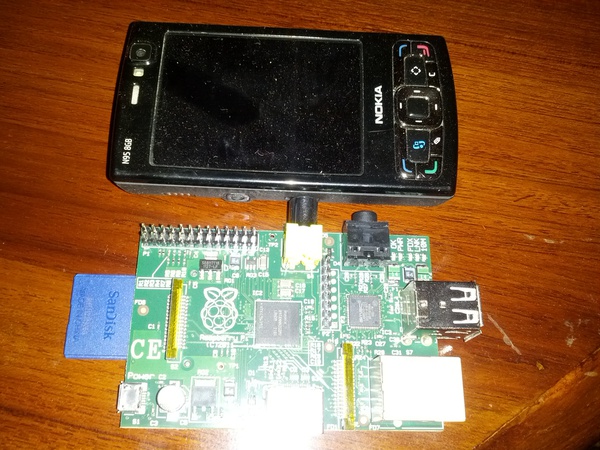
After waiting for almost 6 months from when it launched, and a month after I placed the order I am now a proud owner of a RaspberryPi 🙂 For those of you who are wondering what on earth I am talking about, its a computer the size of a phone (see pic below comparing it with my old Nokia N95) costing $35 that is powerful enough to play Quake3. Its amazing how small this thing is and the features they have managed to cram on to the box. It was delivered yesterday and I was a bit upset at the customs duty I had to pay on the device (paid about 50% of the cost of the device + the cost of shipping as duty) but it still turns out to be a lot cheaper than any other contender.

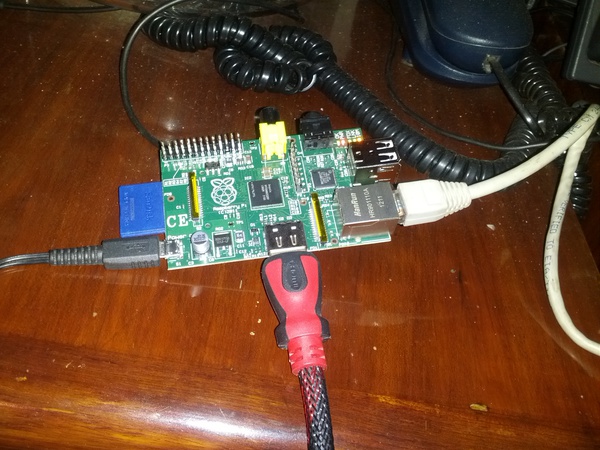
I was really excited to work on it but when I got home and started to set it up I found that my SD card reader/writer was no longer functioning 🙁 so after a few hours of trying and turning the house upside-down for the other card reader that I know I have and just couldn’t find, I finally gave up and messaged Krishna at 12:30am asking him to bring a SD Card reader with him to the office (which he did, thanks!) the next day. Had to wait a day to get back home and once I got home with the reader I then downloaded the Debian image to my computer and wrote it to the card, powered the system with my old blackberry charger, plugged in an Ethernet cable and a HDMI cable (actually HDMI to DVI cable if you want to be picky) connecting the Pi to my second monitor. That’s when I hit a snag. Turns out that I don’t have a single USB keyboard at home, all my keyboards are PS/2. 🙁 So now I either need to borrow a USB keyboard or go buy a small one. In any case I powered the Pi up to see if it works ok and it powered up fine.

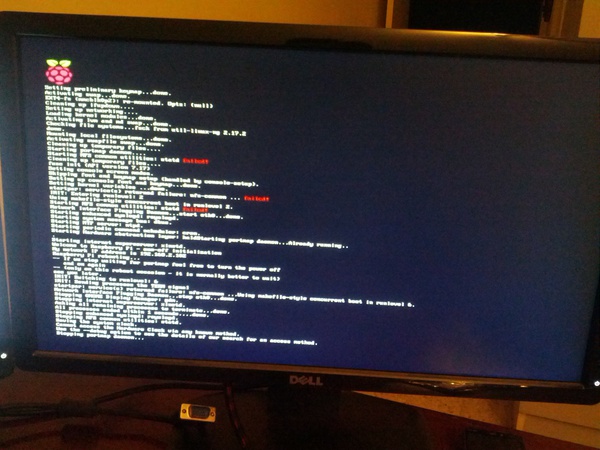
The first boot took about a min, but after that the system gets to the login prompt in about 15 secs, which is pretty cool. I can reduce the boot time further by disabling services that I know I won’t use (like NFS etc). Unfortunately SSH wasn’t enabled on the box, so without a keyboard and no remote connection I couldn’t really do anything more at this time, but I am full of idea’s for this device.

Below are some pics of the Pi in action:


Comparison shot of the RaspberryPi next to a Nokia N95


The RaspberryPi hooked up and ready for action


Initial Boot Sequence of RaspberryPi

I wanted to take a comparison shot of the Pi next to my Galaxy Nexus but I was using the Nexus to take the photos (didn’t feel like pulling out the camera, take a pic, take out the card and then upload the pics as compared to; take the photo, FTP to computer).

Well this is all for now, am a bit sad, but still excited. Keep an eye here for more on the Pi and my experiments with it.

– Suramya

June 13, 2012

Should you comment your code?

Filed under: My Thoughts,Tech Related — Suramya @ 11:12 PM

Had a really interesting discussion at work today about putting comments in source code. A while ago someone I know told people not to put comments in any code they create and we were arguing the pro’s and con’s of this. I personally think that good comments are quite useful and should always be added to code, but there is another school of thought that says that code should be written well enough that comments are not required. When I started coding, I was told to always put good comments in the code because it helps the person who is reviewing/debugging your code when you are not around to understand what your logic or thought process was when you created that wonderful collection of code. Assuming that your code is good enough to not require any comments is very egostical. What is perfectly clear and logical to you because you have been working on a system for a couple of years will not be clear to someone who is new to the system. Put another way, code tells you how something is done and comments tell you why.

I have had the joy of maintaining legacy code written in a mix of VB, VB.NET and Javascript with 0 comments in the code. Believe me it was not fun. The best part is when I talked to the guy who had written the code he could understand it perfectly without needing comments.

I am not talking about putting comments like “Here we are checking if the value of Var is more than 5” for code that reads: if($Var > 5). I am talking about taking a few lines to explain code like (This is an example from one of my scripts to create collages):

	# Repeating the cropping process to get the other half of the image. This reduces the possibility of half empty collages

	for ($i=5; $i>0;$i--) 
	{
		opendir(DIR, ".");
		while ($file=readdir(DIR)) 
		{

I could figure out what this 30 line blob of code was doing after walking through the code in 5-10 mins or I can read the comment and understand the logic in 30 sec’s. If needed I can then look at the code more closely but if I just want to understand how the code works on a high level comments help a lot.

Now lets look at it from the other perspective. Comments take up space in the file and if not well written they just take space and at times if they are not updated when the code changes can provide the user with incorrect information. The idea is that if required any documentation on the code can be auto generated by auto documentation tools. However if my developers are not trustworthy/reliable enough to update comments in code then I am pretty sure they can’t be trusted to follow the format required for the documentation creator software either.

The one point that made sense to me was that at times people put information in code comments that should not be public. For example a developer can comment out a section of JSP code that has the DB connection info for the dev servers but now this information is visible to anyone who views the html code generated. Or other notes/comments that probably should not be openly accessible to everyone that searches.

Last point before I end the post. Code should be clean and readable, you shouldn’t rely on comments to cover for bad coding practices. But I don’t want you to put a comment on every line of code, you should only put useful comments. Comments that help a future coder understand why you did something in a certain way are great.

What do you think? Code comments are good? Bad? You don’t really care?

Additional articles/posts that discuss this:

* Coding horror
* Successful Strategies For Commenting Code
* Don’t comment your code

This is all for now. Will post more later.

– Suramya

April 11, 2012

Doctor Who RPG Video

Filed under: Humor,Tech Related — Suramya @ 11:52 PM

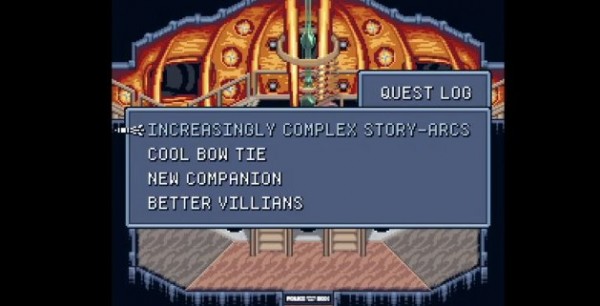
Normally I don’t post links to video’s on the blog but after watching this video I just had to share. Its a must watch for all Doctor Who fans but it has a lot of spoilers so don’t watch it if you haven’t seen the last season of Dr Who. The video shows the last season of Dr Who as an 8bit RPG and is awesome. Plus it has Fish and Custard 🙂 I wish that this was a real RPG.

Click on the image below to watch the video:

BTW, Shipra: is 11:50pm better for this stuff than 6am? 🙂

Thanks to Nerdapproved.com for the link.

– Suramya

March 13, 2012

Running Ubuntu on my Samsung Galaxy Tablet

Filed under: Computer Software,My Thoughts,Tech Related — Suramya @ 1:25 AM

A couple of days about someone at work posted an email asking about Ubuntu Installer and if anyone has tried installing Ubuntu on their android tablet using this software (Sorry I can’t remember your name but am too lazy to log on to the office network to find it in my mailbox). I volunteered to try it out because it sounded interesting and cool to have. This application allows you to install Ubuntu on your Android device on top of android so you basically run Ubuntu as a virtual machine in Android in a fairly easy and painless way. From the FAQ on the developer’s website:

This projects aim is to bring a range of linux distros to your android device through a method known as ‘chroot’, see it has running a linux distro within a virtual machine on your phone. You can access this virtual machine and run it on your phone without causing any damage to your device, or having to overwrite anything. Why might you want this? well my apps are designed to make the install and set up process as easy as possible (more so in the paid apps) while still giving you some flexibility. Once you have the distro up and running then you can pretty much run and install any linux software you like (so long as there is a arm port or it is not architecturaly depenedent), sure there a very few big benefits over what android itself can do but it is still pretty dam cool. (and with the free ubuntu version, hey its free does it matter how useful you find it?)

Excluding the time it took to download the image, the entire process took me about 15 mins to complete so that shows you how easy & painless the entire process was. The app install takes only a couple of mins to complete and that just installs an application that gives you a user guide that explains the install process and buttons to make the process faster/easier. The process is pretty self explanatory and if you can read and understand English and are good at following directions you should have no issues installing. 🙂 I would really suggest downloading the images over WiFi because downloading 1.5GB over 3G/GPRS would be too expensive.

There are two Ubuntu images available: small (450 MB) & large which is 1.5 GB, The large image requires 3.5GB of free space on your SD card and the small image requires 2.5GB of free space. If you have enough free space then you should go for the larger image as that has the Gnome desktop plus a ton of applications pre-installed the small one doesn’t have too many applications preinstalled and uses LXDE instead of GNOME. I first downloaded the small image to try it out and liked it enough to download the large image.

The install itself was mostly painless. I did hit an issue initially when unzip’ing the small image file (the download is a zip file) with AndroZip as it was unable to handle the large file size and kept dying on me. Using Astro’s built in extractor resolved this and I was then able to extract the file without issues. Learning from this I downloaded the large image on my computer and copied it over after extracting it there (plus I didn’t have enough space to download the file and then extract it on the tablet itself).

After you download the images, the instructions tell you to install the VNCViewer app and the Terminal app. It wasn’t clear from the instructions that VNC was required to see the actual desktop itself so I didn’t install it at first thinking that it was so that you could connect to your laptop/desktop from the tablet. I later realized that it was needed to see the Gnome desktop so installed it and was good to go.

The process to start Ubuntu is a bit cumbersome and requires you to type a few commands on the Terminal but once you start the image and select the desktop size you are good to go and all you have to do then is connect to the Ubuntu desktop using VNC. The desktop is fairly responsive and you can zoom in for more fine grained control. The large image installs the Gnome desktop and not Unity but still it was pretty good. Would have liked to get the option to try Unity as it was designed for tablets but I guess that is a project for another day.

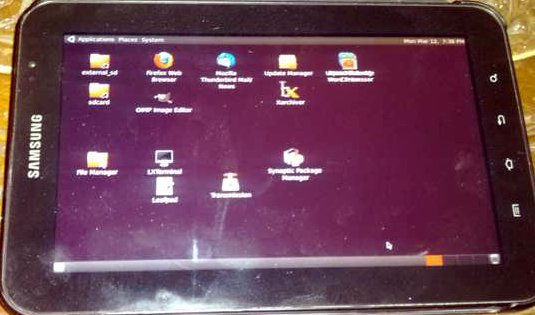
Below is an photo of the tablet with the Gnome desktop running on it (Taking a photo of a tablet at night is a pain because the flash reflects off the screen and without the flash the photo is too dark):

Ubuntu on Samsung Galaxy Tab

Over all a cool and geeky thing to have, but not really that useful in the long run unless you have programs that you want to be able to work on when not at your desktop and don’t have net access.

– Suramya

March 12, 2012

Voice Recognition on Samsung Galaxy Nexus using Swype

Filed under: My Thoughts,Tech Related — Suramya @ 11:59 PM

I like the voice recognition built into Swype keyboard a lot and have been using it quite often to type out SMS’s etc when I have net access and am feeling lazy (The service requires net access to work). For the most part the recognition works quite well and it looks like it learns the more you use it. So I decided to stress test it by using it to type out a complete blog post… Unfortunately that didn’t work out that well. The first para came out ok, but for the next few para’s it got 90% of the stuff wrong instead of the other way which was what I was expecting. I finally gave up typing the blog on the phone because it was taking too long.

It would have been cool if it worked the way I expected so that I could make notes/reminders for myself while driving which is when I get a lot my my project ideas. At present if I use this to make notes then I would spend the next 10 hours trying to figure out what the hell I was thinking about, so I think that for now I will stick to trying to remember stuff and then transcribing it at red lights and traffic jams.

But for just typing SMS’s it works great and is a lot faster than trying to type stuff out.

Final verdict? Cool implementation but requires a lot more work before it can be used as a keyboard replacement.

– Suramya

March 3, 2012

Configuring Dual monitors in Debian

Filed under: Knowledgebase,Linux/Unix Related,Tech Related,Tutorials — Suramya @ 12:01 AM

[Update 8th Aug 2012: This is an older method of setting up the monitor kept for historic reasons. In the newer version of KDE the process is a lot simpler, please refer to this post for the updated steps – Suramya.

Recently I went ahead and bought two new Dell 20″ monitors for my home system as I had gotten used to working with two monitors at work and wanted the same experience at home as well. The problem started because initially I tried installing another graphics card and hooking up the second monitor to that card using VGA. For some reason maybe because I was to tired and wasn’t thinking clearly, I couldn’t get both the cards to work at the same time. I would get one or the other but not both. To make things even more fun, the monitors are 16:9 aspect ratio and when I used the Opensource driver the only resolution with that aspect ratio I would get was 1600×900 which was too small and the fonts looked kind of jagged at that resolution.

Since I was going to be out of town and was planning on switching to DVI cables anyways I left the system like that (after spending a bit of time experimenting) and left. Once I got back I ordered DVI cables and finally managed to get the dual monitor setup working after spending about an hour one the issue. Below is the sequence I followed to get stuff to work (documenting this so that if I ever have to do this again I have a record of what I did):

  • Removed the second video card to reduce complexity. Might add it back later if required, or if I want to hook my old monitor as a third display.
  • Connected both monitors to the onboard ATI Radeon HD 4250 card, one over DVI and the second using VGA
  • Removed the Proprietary ATI and nVidia drivers (both installed in my previous attempts to get this working). Instructions here
  • Restarted X
  • Installed Catalyst (a.k.a fglrx) a proprietary “blob” (closed source binary) driver, using the following command:
  • apt-get install fglrx-atieventsd fglrx-control  fglrx-driver fglrx-glx fglrx-modules-dkms glx-alternative-fglrx libfglrx libgl1-fglrx-glx libxvbaw

Once the driver was installed I restarted X once again and got both monitors working, but the second monitor’s display was a clone of the first one which is not what I wanted so I had to do some more digging and finally managed to fix that using the following steps:

  • Open a terminal/Command Prompt
  • Disable access control so that clients can connect from any host by issuing the following command as a regular user
  • xhost +

    This is required so that we can start a GUI command from a root shell. If we don’t do this you will get an error similar to the following in the next step:

    No protocol specified
    No protocol specified
    amdcccle: cannot connect to X server :0
  • Run ‘Ati Catalyst Control Center’ as root
  • sudo amdcccle
  • Click on ‘Display Manager’ and configure your monitors (Resolution, location etc)
  • Click on ‘Display Options’ -> ‘Xinerama’ and enable ‘Xinerama’
  • There is a bug in the display manager that prevents it from saving any changes if the xorg.conf file exists, to fix:

  • Run the following command as root:
  • mv /etc/X11/xorg.conf /etc/X11/xorg.conf_original
  • Click ‘Apply’ in the Catalyst Control Center
  • Restart X

That’s it. Once I did all that, my dual monitor setup started working without issues. Well… mostly. For some reason my desktop effects have stopped working (Transparent/Translucent windows etc) but I am not going to worry about it for now. That’s a battle for another day, maybe over the weekend.

Please note, that setting up Dual monitors usually is not this complicated in Linux. When I hooked up my TV to this same system I didn’t have to make any changes to get it to work. In this case since I was fiddling around I had to fist fix the mess I made before I was able to get this to work properly.

For those of you who are interested, the final xorg.conf that the above steps created is listed below:

Section "ServerLayout"
        Identifier     "amdcccle Layout"
        Screen      0  "amdcccle-Screen[1]-0" 0 0
        Screen         "amdcccle-Screen[1]-1" 1440 0
EndSection

Section "ServerFlags"
        Option      "Xinerama" "on"
EndSection

Section "Monitor"
        Identifier   "0-CRT1"
        Option      "VendorName" "ATI Proprietary Driver"
        Option      "ModelName" "Generic Autodetecting Monitor"
        Option      "DPMS" "true"
        Option      "PreferredMode" "1440x900"
        Option      "TargetRefresh" "60"
        Option      "Position" "0 0"
        Option      "Rotate" "normal"
        Option      "Disable" "false"
EndSection

Section "Monitor"
        Identifier   "0-DFP1"
        Option      "VendorName" "ATI Proprietary Driver"
        Option      "ModelName" "Generic Autodetecting Monitor"
        Option      "DPMS" "true"
        Option      "PreferredMode" "1440x900"
        Option      "TargetRefresh" "60"
        Option      "Position" "0 0"
        Option      "Rotate" "normal"
        Option      "Disable" "false"
EndSection

Section "Device"
        Identifier  "amdcccle-Device[1]-0"
        Driver      "fglrx"
        Option      "Monitor-DFP1" "0-DFP1"
        BusID       "PCI:1:5:0"
EndSection

Section "Device"
        Identifier  "amdcccle-Device[1]-1"
        Driver      "fglrx"
        Option      "Monitor-CRT1" "0-CRT1"
        BusID       "PCI:1:5:0"
        Screen      1
EndSection

Section "Screen"
        Identifier "amdcccle-Screen[1]-0"
        Device     "amdcccle-Device[1]-0"
        DefaultDepth     24
        SubSection "Display"
                Viewport   0 0
                Depth     24
        EndSubSection
EndSection

Section "Screen"
        Identifier "amdcccle-Screen[1]-1"
        Device     "amdcccle-Device[1]-1"
        DefaultDepth     24
        SubSection "Display"
                Viewport   0 0
                Depth     24
        EndSubSection
EndSection

Hope all this made sense and helps someone. If not feel free to ask questions.

– Suramya
« Newer PostsOlder Posts »

Powered by WordPress