Suramya's Blog : Welcome to my crazy life…

January 6, 2026

KDE’s Full form: Kool Desktop Environment

Filed under: Computer Software,Linux/Unix Related,My Thoughts,Tech Related — Suramya @ 5:12 PM

One of the cool things about Linux that also confuses a lot of people who are used to Windows is that it allows you to use different Desktop environments based on your choice. So if you like a minimalist setup or are on an old system with limited resources you can use something like IceWM or Fluxbox. Others like GNOME which is more like a Mac interface, I personally prefer KDE which is similar in layout to Windows and has a lot of good widgets and inbuilt functionality I like.

I have been using KDE since I first started using Linux back in early 2000 but till today didn’t really think about what the acronym stood. While surfing the web I found the full form and found it funny. KDE Officially stands for: Kool Desktop Environment. It was first announced on a Linux Mailing list way back on 14th Oct 1996: New Project: Kool Desktop Environment. Programmers wanted!

From that small beginning KDE is now one of the most popular Desktop Environments out there and is constantly being updated.

Thought I should share so that others also know…

– Suramya

December 29, 2025

OpenVPN Not working for websites when connected over Airtel Xtreme Fibernet

Over the past few weeks I have been having issues browsing websites when connected to OpenVPN connection on my Airtel Fibernet connection. The interesting thing was that the same settings/vpn worked fine when I connected to my ACT connection instead of Airtel. So I knew it wasn’t an issue on the VPN side, it was something to do with how Airtel was configured and it was really annoying me. So, over the weekend I decided to spend some focused time to fix this issue and finally managed to fix the issue.

Symptoms:

  • The VPN Connection would connect without errors.
  • No error messages in logs
  • When trying to access websites, it would just wait for the website to respond. (Initially thought it was a SSL issue but hit the same issue with http)
  • Putting the system in the DMZ didn’t work
  • Manually configuring the Routes to match the Route when connected to ACT didn’t work either
  • Traceroute worked fine though

Curl in verbose mode would giving me the following and then it would just sit there waiting for a response:

suramya@StarKnight:~/Media/Downloads$ curl -vvv www.google.com
02:43:17.786482 [0-x] == Info: [READ] client_reset, clear readers
02:43:18.370318 [0-0] == Info: Host www.google.com:80 was resolved.
02:43:18.370467 [0-0] == Info: IPv6: 2607:f8b0:4005:80d::2004
02:43:18.370566 [0-0] == Info: IPv4: 142.250.189.164
02:43:18.370624 [0-0] == Info: [SETUP] added
02:43:18.370723 [0-0] == Info: Trying [2607:f8b0:4005:80d::2004]:80…
02:43:18.370951 [0-0] == Info: Immediate connect fail for 2607:f8b0:4005:80d::2004: Network is unreachable
02:43:18.371175 [0-0] == Info: Trying 142.250.189.164:80…
02:43:18.371332 [0-0] == Info: [SETUP] Curl_conn_connect(block=0) -> 0, done=0
02:43:18.544635 [0-0] == Info: [SETUP] Curl_conn_connect(block=0) -> 0, done=0
02:43:18.570870 [0-0] == Info: [SETUP] Curl_conn_connect(block=0) -> 0, done=0
02:43:18.699887 [0-0] == Info: [SETUP] Curl_conn_connect(block=0) -> 0, done=1
02:43:18.700062 [0-0] == Info: Connected to www.google.com (142.250.189.164) port 80
02:43:18.700228 [0-0] == Info: using HTTP/1.x
02:43:18.700338 [0-0] => Send header, 82 bytes (0x52)
0000: GET / HTTP/1.1
0010: Host: www.google.com
0026: User-Agent: curl/8.13.0-rc2
0043: Accept: */*
0050:
02:43:18.700663 [0-0] == Info: Request completely sent off

Then suddenly just to try something different I tried accessing one of my servers over SSH and surprisingly that worked without issues (The connection was a bit slow, but it worked). That showed me that the issue was only for sites over http/https.

I searched the web for solutions and found the following site Setting correct MTU where they were troubleshooting a similar issue. The site suggested adding the following lines to the Client Configuration and I thought I might as well give it a try since nothing else had worked.

 tun-mtu 1492
mssfix 1400

I added the lines, restarted the connection and viola all sites started loading even when connected over the VPN. (Yay!) Turns out Airtel needs a higher MTU value than the default for the VPN to work.

– Suramya

December 9, 2025

Security vs Accessibility: Thoughts on the problem and how it can be addressed

Security is something that always comes at an expense of Usability and I wrote about this earlier as well. However, in this post I am going to talk about something slightly different: How security measures impact accessibility. At first glance it might look that both topics are the same but there are extra nuances in the Accessibility that unfortunately are not considered a lot of the time when we design a system. To be honest I didn’t think about it much either until I saw a post by James on Mastodon highlighting the issue:

https://mastodon.social/@jscholes@dragonscave.space/115673620717345529
Security measures impacting Accessibility for blind users

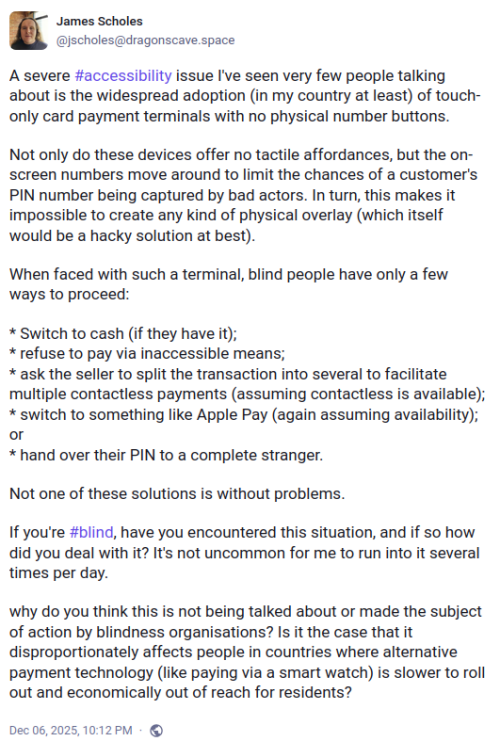
A severe issue I’ve seen very few people talking about is the widespread adoption (in my country at least) of touch-only card payment terminals with no physical number buttons.

Not only do these devices offer no tactile affordances, but the on-screen numbers move around to limit the chances of a customer’s PIN number being captured by bad actors. In turn, this makes it impossible to create any kind of physical overlay (which itself would be a hacky solution at best).

When faced with such a terminal, blind people have only a few ways to proceed:

* Switch to cash (if they have it);
* refuse to pay via inaccessible means;
* ask the seller to split the transaction into several to facilitate multiple contactless payments (assuming contactless is available);
* switch to something like Apple Pay (again assuming availability); or
* hand over their PIN to a complete stranger.

Not one of these solutions is without problems.

If you’re , have you encountered this situation, and if so how did you deal with it? It’s not uncommon for me to run into it several times per day.

why do you think this is not being talked about or made the subject of action by blindness organisations? Is it the case that it disproportionately affects people in countries where alternative payment technology (like paying via a smart watch) is slower to roll out and economically out of reach for residents?

It is easy to forget that others have different requirements and needs than you and navigating a world which is moving towards removing tactile feedback makes it harder for people with vision problems or motor control issues from interacting with the world. Every single security feature that we add to a system the more the potential of making the system inaccessible increases. For example, if we have captcha checks while logging into a site or a computer then screen readers can’t read the captcha by design so blind users are unable to log in to the system. A fix for that was to have audible captcha code but with the advances in voice recognition an attacker can use a voice recognition system to identify the code and bypass the security measure.

Accessibility features / functionality seems to be an afterthought (if that) for developers even in 2025. There are major accessibility issues in Linux and Fireborn (Couldn’t find their real name) did a whole series of blog post’s about the issues they face as a blind person using Linux (I Want to Love Linux. It Doesn’t Love Me Back: Post 1 – Built for Control, But Not for People) on a day to day basis. The sad part is that while a lot of people acknowledged the issue and agreed to work on fixing it there were the usual gatekeepers who wrote nasty/condescending messages in response to the post, Fireborn responded to the comment quite beautifully (and a lot more politely than I would have in their position) in another blog post (You Don’t Own the Word “Freedom”: A Full-Burn Response to the GNU/Linux Comment That Tried to Gatekeep Me Off My Own Machine) This right here is the issue that we need to solve. People don’t think we need to work on accessibility because they don’t need it. I remember reading an article about how there was a group of people really upset because a streaming solution was giving more focus on subtitles for their shows. No one is forcing you to enable subtitles but folks who don’t speak the language or have hearing issues they are a lifesaver.

Coming back to the security & accessibility issue for a POS (Point of Sales system), there is no easy way to solve this problem for card users. One option I can think of is for stores to keep a physical bluetooth pin-pad that is paired with the POS machine so that users with vision problems can use the physical keyboard to enter the pin. This would require effort (and have a cost implication) from the store so I don’t know how many stores will do that. It would work if there was a law that required the store to do this but if that is not there then the users are lost.

Another option would be to have a screen/image reader application on a phone that the user (or store) owns that scans the display and then reads out the numbers displayed. Even better functionality would be to have the app detect which number is covered by the user’s finger and let the user know verbally (over a headset ideally) so that they can enter the numbers.

These are some of the ways that I can think of to solve this problem but since I am not the target user a better way to approach this issue would be to work with folks with vision problems and have them confirm if the solution we are coming up is actually solving their problem or not.

– Suramya

February 6, 2025

A Linux Distribution which runs directly within a PDF file

There is a semi-serious joke in the IT industry that anything that can compute is eventually used to play Doom and then run Linux. Now you can do both from inside a PDF file. Since the PDF specification supports Javascript a highschool student who goes by the handle ‘ading2210’ has implemented a RISC-V emulator in it which can run a barebones Linux distribution within the PDF file itself. This builds on top of the work done to get Doom to run inside the PDF file.

The full specfication for the JS in PDFs was only ever implemented by Adobe Acrobat, and it contains some ridiculous things like the ability to do 3D rendering, make HTTP requests, and detect every monitor connected to the user’s system. However, on Chromium and other browsers, only a tiny subset of this API was ever implemented, due to obvious security concerns. With this, we can do whatever computation we want, just with some very limited IO.

C code can be compiled to run within a PDF using an old version of Emscripten that targets asm.js instead of WebAssembly. With this, I can compile a modified version of the TinyEMU RISC-V emulator to asm.js, which can be run within the PDF. For the input and output, I reused the same display code that I used for DoomPDF. It works by using a separate text field for each row of pixels in the screen, whose contents are set to various ASCII characters. For inputs, there is a virtual keyboard implemented with a bunch of buttons, and a text box you can type in to send keystrokes to the VM.

The largest problem here is with the emulator’s performance. For example, the Linux kernel takes about 30-60 seconds to boot up within the PDF, which over 100x slower than normal. Unfortunately, there’s no way to fix this, since the version of V8 that Chrome’s PDF engine uses has its JIT compiler disabled, destroying its performance.

For the root filesystem, there are both 64 and 32 bit versions possible. The default is a 32 bit buildroot system (which was prebuilt and taken from the original TinyEMU examples), and also a 64 bit Alpine Linux system. The 64 bit emulator is about twice as slow however, so it’s normally not used.

You can try out the implementation of LinuxPDF here. More details of the project and the code used to create it is available on the project’s GitHub page.

– Suramya

January 21, 2025

Getting my NVIDIA card working after breaking it again with the latest updates

Filed under: Computer Software,Knowledgebase,Linux/Unix Related — Suramya @ 11:10 AM

NVIDIA doesn’t have the best history with Linux as it’s cards historically didn’t work well with Linux. But over the past few years things were changing and at least in my experience they were at a point that the cards worked without major issues. As some of you know I use the unstable version of Debian, primarily because it has the newest versions of software available but the downside of using it is that things break and sometimes they break spectacularly.

This time there was an issue with the NVIDIA driver/configuration which caused my system to stop opening the GUI login interface when I restarted the system. I tried reinstalling the driver as the error messages in the log suggested that the issue was caused by a missing driver. I purged the nvidia drivers by issuing the following command as root:

apt purge *nvidia*

Then reinstalling the drivers using the following command:

apt-get install nvidia-detect nvidia-driver

After this reinstall the driver was being detected correctly but the GUI still wasn’t coming up. A search on the net didn’t return many useful results but on one of the sites, there was a reference to the fact that running nvidia-xconfig recreats the X Configuration file for NVIDIA cards, so I tried that by running the following commands as root

apt-get install nvidia-xconfig 
nvidia-xconfig 

This created the Configuration file and once I rebooted everything started working again. I did have to reconfigure my desktop since one of the things I had tried was to reset all the custom configurations to KDE but that was mostly a minor issue.

This issue was on Kernel 6.12.9-amd64 with Debian Unstable release as of 17th Jan 2025

– Suramya

October 12, 2023

Someone got fired for not using Windows because the invasive workplace surveillance tool didn’t work well on Linux

Filed under: Linux/Unix Related,My Thoughts,Tech Related — Suramya @ 9:38 PM

There are a lot of reasons why I recommend people don’t use Windows but there are times when you have to use it because it is required for work, or for other reasons such as compatibility (though CrossOver by Codeweavers is a lifesaver for that). Over at HackerNews, there is a thread about a post over at Reddit (I guess people are still using it…) where a guy is claiming that “I Lost my job because I refused to use Windows, who is at fault?”)

I have been using Windows at work at almost every company I have worked with because that is the default and most corporate apps are designed for and work only with Windows systems. Since I personally prefer using Linux I have asked (and in some cases) gotten a Linux version of the desktop for my use. The main blockers for corporations to use something like CrossOver is the problem of support. If a company is running MS Office on Linux using crossover and they hit an issue, MS can and does blame it on the setup and asks you to revert to a standard setup. I have even heard folks claiming that they (MS) have blamed custom plugins that the company was running for the issues were being highlighted.

All that said and done I don’t think I would ever point blank refuse to use windows when my company asks me to run it and threatens termination if I don’t. Though to be honest I would have also started looking for other opportunities if I was in this persons shoes since as per their post the reason for the demand was that: “A software they use for time tracking didn’t support screenshots on Wayland and I refused to switch to Windows (xorg is just no for me) to support them.”.

Having a program running on my personal machine that constantly takes screenshots and uploads them to a remote server is not something I would agree to do. We don’t know what company they were working for but this kind of invasive surveillance might not be 100% legal in all locations. A company might get away with it on work systems if they have a contract and the user explicitly agrees to it but on a personal machine… If the user forgets it is running and accesses their health record, or bank account or other sensitive data their employer would have a copy of that data. Imagine if they got breached, how much sensitive & personal data might get exposed with this setup.

A lot of work has been put into these surveillance technologies and there is a whole industry around monitoring people at work to ensure they are actually working. In a previous company a team wanted to put software on all office computers that would track the time the person was actually typing/moving the mouse etc and use that to calculate their productivity and then rate them on that. After the system was demoed, I asked how it was accounting for time spent in face to face meetings, design discussions, calls etc that don’t necessarily need a computer, the answer was vague enough that the head of the department remarked that if it was implemented every single member of the management team would be rated as non-productive as a majority of their time was in meetings and discussions etc.

During covid a lot of people were worried that folks working from home would not actually work and started tracking mouse/keyboard activity. So people came up with ingenious solutions to ensure that the mouse was moved and text typed on the office systems. Some was done via software/scripts others used hardware and innovation such as taping the mouse to a desk fan amongst other methods.

This kind of monitoring is being routinely done on employees who don’t have much options and are not able to move easily. The end result is that the company is trying to maximize their profit by nano-managing their employees and using this tech to ensure they squeeze all possible work out of them while paying the minimum amount.

Now coming back to the original question, was it wrong to insist on using Linux when the job requires you to use Windows? If the company was giving me a laptop/computer running windows and I formatted it to run Linux then I would be in the wrong. If I am using my own computer then I can use whatever OS I want as long as the work gets done. However if I am insisting on using Linux on a Work computer when they require windows and even after multiple warnings they don’t switch back to Windows then the company is right to fire them. (Assuming that there are no other issues such as the invasive monitoring we talked about earlier.)

There are multiple people who will find this stance unacceptable but there is a rational behind this that not everyone thinks about. The company might be legally required to keep records/logs of work, mails sent etc and the audit requirements would not be met if a non-compliant system was in use. Similarly the default backup and archiving systems might not work with Linux and cause problems. There are a ton of issues that would need to be worked out before having a mixed use OS landscape and if no other considerations are there then the company can be justified in firing such a person who refuses to use Windows because they don’t like it.

Source: Hacker News: Lost my job because I refused to use Windows, who is at fault?

– Suramya

September 7, 2023

Youtube2Webpage: Create Websites with Text from Videos

In my last post, I had talked about preferring text content to videos and coincidentally my Hacker News feed happened to cover a tool that takes a video link and creates a webpage with a transcript generated from the video’s closed captions paired with screenshots of the video. The program is called Youtube-to-Webpage. It is a Perl script that uses yt-dlp & ffmpeg to do the processing.

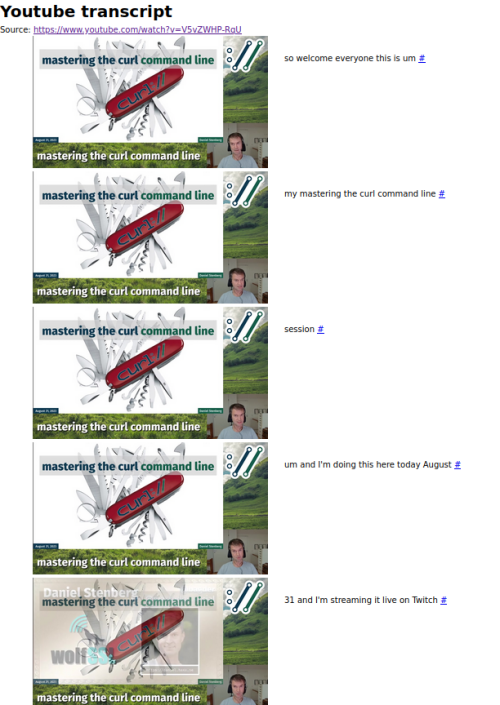
I tried it out using the curl video I talked about in the previous command as the input and the software did a decent job capturing the details. The output is very plain and looks like the following:

Transcription of Curl Training video

Since the program uses the built-in YouTube captions for getting the text from the video, the transcription is only as good as how good the captions are. One enhancement, that could make it better is to use a Speech-to-Text engine and use that text in the output. The slightly tricky part would be to match the screenshots with the audio/transcription timestamps.

Check it out if you prefer to read text instead of videos. I wonder how the output would look if we feed this to a LLM and ask it to make it like an article. That can be something we can explore for the next post 🙂

– Suramya

September 6, 2023

Mastering curl using an interactive text guide

Filed under: Knowledgebase,Linux/Unix Related,My Thoughts — Suramya @ 10:09 PM

Curl is a program that has slowly percolated across the entire internet and in places where you wouldn’t believe. Folks have found it installed in inverters, it is running in outerspace etc. I mostly used to use wget earlier because my needs were quite simple and usually I just wanted to download a page or file from a website, then as I started working on more advanced use cases I found that curl was more powerful and versatile than wget, so I use curl more than wget now. (for the most part).

The curl command is extremely versatile and has over 250 commandline options, even seasoned users don’t know what all the tool can do so Daniel Stenberg who is the author of curl created a 3.5 hours long video on how to master curl. While the video is really useful and goes in depth, I personally don’t like to watch video tutorials. Instead I prefer to read text based tutorials as I read quite fast and can also search for specific stuff in a text tutorial which is not really possible in a video (at least not easily).

So, I was quite pleased to find that Anton Zhiyanov had taken the effort to create a text version of the video for future reference and as a cherry on top they even made the whole thing interactive so that you can try out the commands directly from the website and see how they would work.

Do check out the tutorial if you want to learn more about curl and how to use it more efficiently.

– Suramya

September 4, 2023

Mashing Enter can allow you bypass full disk encryption in certain scenarios

Filed under: Computer Security,Linux/Unix Related,My Thoughts — Suramya @ 12:30 PM

When folks think about hacking and people bypassing secure systems they have this mental image of folks writing complex code or physically reading the data byte by byte but that is not always true. Sometimes, it is as simple as just keeping the enter key pressed while the system is booting up. Yes, you read that right. A few days ago a vulnerability was found in a TPM-protected system that is configured to implement unattended unlocking for LUKS full disk encryption using RedHat’s Clevis and dracut software along with systemd.

Generally, a Linux computer using TPM-protected unattended disk encryption will still allow a user to view the output of the boot process and optionally manually enter a decryption password with the keyboard. This allows for situations where the computer fails to boot and needs someone to troubleshoot the startup process. While the unattended TPM unlocking is taking place, the user is still presented with the password prompt and an opportunity to enter input.

There’s a limited window of time before the TPM will unlock the disk and the boot process will proceed automatically to the login prompt, so how can we effectively fuzz this input opportunity? What if we could type faster than a human being? Using an Atmel ATMEGA32U4 microcontroller (such as you’d find in an Arduino Leonardo development board) we can emulate a keyboard that sends virtual keypresses at essentially the maximum rate that the computer will accept. The following short Arduino program sets up a Leonardo as a keyboard emulator:

#include "Keyboard.h"
void setup() {
delay(1000);
Keyboard.begin();
}
void loop() {
Keyboard.press(KEY_RETURN);
delay(10);
Keyboard.releaseAll();
delay(10);
}

One second after being plugged in this program begins to simulate pressing the Enter key on a virtual keyboard every 10 milliseconds. This is about 10x faster than the usual keyboard repeat rate you’d get simply holding down a key, and Linux seems to recognise around 70 characters per second using this method, or one keypress approximately every 15 milliseconds.

Sending keypresses this fast quickly hits the maximum number of password entry retries, while keeping the system from unlocking the disk automatically due to password guess rate limiting, and systemd eventually gives up trying to unlock the disk. It takes a minute or two but the recovery action in this failure scenario is to give us a root shell in the early boot environment

The simplest way to address the most immediate problem: Add rd.shell=0 and rd.emergency=reboot to the kernel command line. This ensures that if anything fails during the early boot process the computer will reboot immediately rather than dropping into a root shell.

However, this goes to show us that the old statement about security is still absolutely valid: “Physical access is root access. You can’t spend thousands on protecting the cyber threat landscape and ignore physical security such that people can just walk up to your computer and stick things inside. That being said, having a physical security program doesn’t necessarily protect your from an insider threat so that is also something to keep in mind.

Source: Pulsesecurity: Mashing Enter to bypass full disk encryption with TPM, Clevis, dracut and systemd

– Suramya

August 22, 2023

Getting my Pocket C.H.I.P. to finally work

Filed under: Knowledgebase,Linux/Unix Related,My Thoughts,Tech Related — Suramya @ 11:59 PM

Way back in 2016, I backed the Pocket C.H.I.P on Kickstarter opting to get 2 CHIP’s and one PocketChip. The C.H.I.P (or CHIP) was a single single-board computer costing $9 launched by Next Thing Co. It used open-source hardware running open-source software and was advertised as world’s first $9 computer as a direct competitor to the RaspberryPi . The device boasted the following configuration:

  • 1 GHz R8M/R8 (ARMv7)SoC processor
  • 512 MB DDR3 SDRAM
  • Built-in Wi-Fi 802.11b/g/n, Bluetooth 4.0
  • One USB host with type-A receptacle, one USB On-The-Go port
  • Composite video and stereo audio port via mini TRRS
  • Optional composite TRRS to RCA audio-video cable
  • Optional VGA adapter and HDMI adapter (I got both)
  • Up to 45 GPIO ports
  • Supports 1-Wire and I2C protocols, PWM output
  • Serial console and Ethernet via USB for quick headless operation
  • Power options include 5V via USB OTG, 5V via CHN pin, and by 3.7V battery
  • Onboard NAND storage, 4-8GB

The PocketChip was a handheld with a 4.3 inch 480×272 pixel resistive touchscreen, a clicky keyboard, GPIO headers on the top of the device, and GPIO soldering pads inside of the injection molded case powered by the CHIP processor. It looks clunky but is easier to connect to the device and setup using the PocketChip rather than doing it with just the CHIP.

Unfortunately the company shutdown in 2018 due to various issues. However, I was one of the lucky backers to receive the devices but once I received them I put them in a drawer and kind of forgot about them as life got busy and interesting. Over the years I did try to power on the device a couple of times but never really looked into getting it to work, so they just collected dust in my desk (literally).

Over the past weekend I decided to try getting it to work so I did some searching and with a lot of trial and error finally managed to get things to work and boot into a working OS. 🙂 The main issue was that I was expecting it to work like the RaspberryPi where the OS was installed on an SD card but in this case the OS had to be flashed on to the onboard flash chip which was a bit more complicated process than installing to a SD card. I followed the instructions at NextThingCo Pocket C.H.I.P. Flashing Guide amongst other pages to get things to work. Here I will document some of the other things I had to do to get it to work. Please note that this was on a Debian setup, things might be a bit different for other OS’s

Install the Prerequisites

First we need to install the tools required by running the following command as root:

apt-get install git android-tools-fastboot sunxi-tools u-boot-tools

Download the CHIP SDK

Download the CHIP-SDK.zip from one of the following links:

Download and extract the CHIP Tools

Download CHIP-tools.zip from one of the following sites:

Download CHIP OS Images

Download the CHIP OS image from one of the following links:

Extract flash-collection.zip

When I tried extracting the contents of the zip file I got from the first link, I got an error that the file is not a Zip file. After a lot of searching I found out that you can run the following command to extract the file instead:

jar xfv flash-collection.zip

Since that seems unnecessarily complicated. I have extracted and re-compressed the file and shared it at the second link. You can extract it using the standard zip tools.

Fix fastboot

The version of fastboot in the Debian repositories is newer than the one used in the setup scripts and if you try to flash with the version installed then fails with the following error message:

..
..
== Cached UBI located ==
Image Name:   flash server
Created:      Sun Aug 20 19:29:14 2023
Image Type:   ARM Linux Script (uncompressed)
Data Size:    1784 Bytes = 1.74 KiB = 0.00 MiB
Load Address: 00000000
Entry Point:  00000000
Contents:
   Image 0: 1776 Bytes = 1.73 KiB = 0.00 MiB
waiting for fel...OK
waiting for fastboot...fastboot: invalid option -- 'i'
.fastboot: invalid option -- 'i'

The easiest fix for this is to rollback to a previous version of the software that supports the -i parameter. You can try to search and download the older version from Debian’s repositories, but I found it easier to download the software from platform-tools_r26.0.0-linux.zip (as I was too tired to go search for it in the archives)

Once you download the file and extract the contents, follow these steps to rollback to the previous version of fastboot:

  • Backup the existing binary for fastboot
  • mv /usr/lib/android-sdk/platform-tools/fastboot /usr/lib/android-sdk/platform-tools/fastboot_old
  • Copy the extracted file from the zip file to the correct location
  • mv platform-tools/fastboot /usr/lib/android-sdk/platform-tools/fastboot

Put the CHIP in FEL mode

The FEL mode allows the software to flash the CHIP with a new firmware. This can be done by putting a jumper wire between GND and FEL. It will look something like the following:
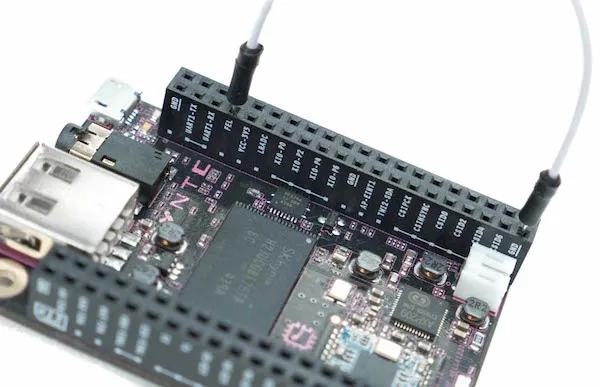

Connecting a jumper wire between GND and FEL to enter FEL Mode

Once you have entered the FEL mode, connect the CHIP to the computer using the microUSB port on the CHIP, not the fullsize USB port.

Flashing the OS to CHIP

Once you have downloaded all the files and unziped them. Follow these steps to Flash the OS to CHIP.

  • Move the CHIP-tools directory to the CHIP-SDK directory
  • mv CHIP-tools CHIP-SDK/
  • Select the Image you want to install and move it into the CHIP-SDK directory. There are 8 Images to choose from, I tested with the testing-server-b543 and testing-pocketchip-b667 images as I have 2 CHIPS to play with. 🙂
  • The original instructions on the site ask you to run the ./setup_ubuntu1404.sh script located in the CHIP-SDK directory but it failed most commands on my system. I think that you should be able to proceed without running it but haven’t tried it.
  • Switch to the CHIP-tools directory
  • cd CHIP-SDK/CHIP-tools
  • Run the firmware upgrade script, replacing Path/To/Chip/Image with the location where you extracted the Image you want to install
  • ./chip-update-firmware.sh -L ../../flash-collection/testing-server-b543/

    If you have done everything correctly and nothing is broken, you will get an output similar to the following:

    suramya@StarKnight:~/Media/Downloads/CHIP/CHIP-SDK/CHIP-tools$ ./chip-update-firmware.sh -L ../testing-pocketchip-b667/
    == Local directory '../testing-pocketchip-b667/' selected ==
    == preparing images ==
    == Local/cached probe files located ==
    == Staging for NAND probe ==
    Image Name:   detect NAND
    Created:      Sun Aug 20 20:24:50 2023
    Image Type:   ARM Linux Script (uncompressed)
    Data Size:    97 Bytes = 0.09 KiB = 0.00 MiB
    Load Address: 00000000
    Entry Point:  00000000
    Contents:
       Image 0: 89 Bytes = 0.09 KiB = 0.00 MiB
    waiting for fel...OK
    waiting for fel......OK
    NAND detected:
    nand_erasesize=400000
    nand_oobsize=680
    nand_writesize=4000
    == Cached UBI located ==
    Image Name:   flash server
    Created:      Sun Aug 20 20:24:58 2023
    Image Type:   ARM Linux Script (uncompressed)
    Data Size:    1784 Bytes = 1.74 KiB = 0.00 MiB
    Load Address: 00000000
    Entry Point:  00000000
    Contents:
       Image 0: 1776 Bytes = 1.73 KiB = 0.00 MiB
    waiting for fel...OK
    waiting for fastboot...................OK
    target reported max download size of 33554432 bytes
    sending sparse 'UBI' 1/23 (28672 KB)...
    OKAY [  2.016s]
    writing 'UBI' 1/23...
    OKAY [  2.069s]
    sending sparse 'UBI' 2/23 (28672 KB)...
    OKAY [  2.007s]
    writing 'UBI' 2/23...
    OKAY [  5.484s]
    ..
    ..
    
    sending sparse 'UBI' 22/23 (28672 KB)...
    OKAY [  1.916s]
    writing 'UBI' 22/23...
    OKAY [  9.079s]
    sending sparse 'UBI' 23/23 (16384 KB)...
    OKAY [  1.105s]
    writing 'UBI' 23/23...
    OKAY [  4.981s]
    finished. total time: 300.744s
    resuming boot...
    OKAY [  0.000s]
    finished. total time: 0.000s
    
    
    FLASH VERIFICATION COMPLETE.
    
    
       #  #  #
      #########
    ###       ###
      # {#}   #
    ###  '%######
      #       #
    ###       ###
      ########
       #  #  #
    
    
    CHIP is ready to roll!

    If you see the message that “FLASH VERIFICATION COMPLETE.” and that “CHIP is ready to roll!”, then the OS installation has completed successfully. Now you can disconnect the CHIP from the computer and remove the jumper cable.

    Booting into CHIP

    If you have the PocketCHIP, then you can just power up the device by pressing on the power button for a second (pressing it for 10 seconds shuts it down forcefully). If you just have the CHIP, you will need to connect it to a monitor and connect a keyboard as well. (I used the PocketCHIP to configure everything and then used it separately).

    The boot up process can take a minute or two, and assuming everything went well you should see the standard boot messages on the screen. Once you get to the login prompt you can log in using the username ‘chip’ (without the quotes) and ‘chip’ (without the quotes) as the password. The root account password is also ‘chip’ (without the quotes).

    Connecting to WiFi and configuring the CHIP

    The first thing that you should do now is connect the device to a WiFi network so that you can SSH into it for ease of configuration. The second thing should be to change the default passwords 🙂

    The easiest way to configure WiFi is to use the nmcli tool. Run the following command as root to connect to the WiFi. More details on the command are available at How to Connect Wi-Fi from Linux Terminal Using Nmcli Command

    nmcli dev wifi connect <SSID of The Network to Connect With> password <password for the Wifi Network> 

    Once the device is connected to the WiFi, get your IP address using the following command:

    ip address

    Then you can SSH into the device from any system using the IP address.

    CHIP is working!!!
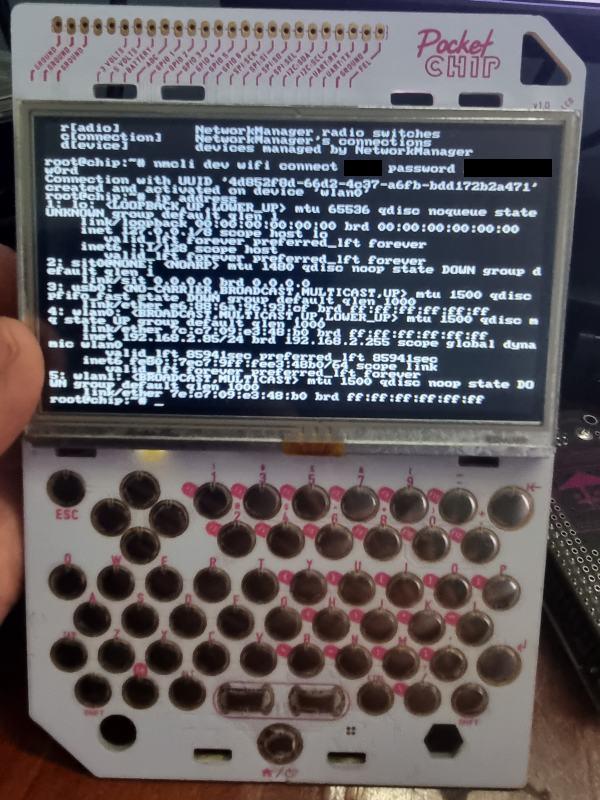

    Running Debian 8 Testing
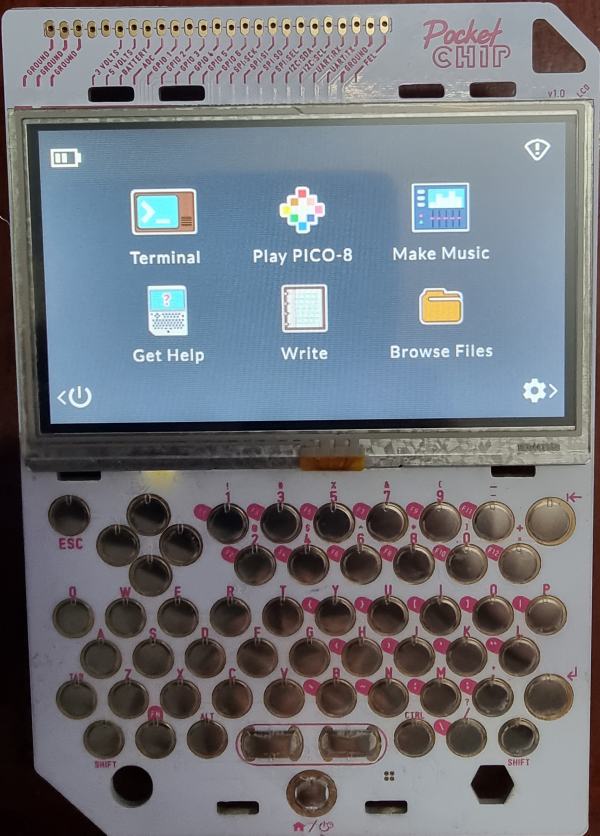

    Running the PocketCHIP customized version (Debian 8)

    Updating the OS to the latest version

    The system is running Debian 8 by default and you should upgrade it to the latest version. Unfortunately, I keep getting errors when I try to upgrade to the latest Debian version and haven’t yet fixed the problem. Basically, I think you need to update the /etc/apt/sources.list with the correct mirror details and then upgrade. Once I get some time to revisit the setup and resolve the issue I will post the fix on the blog as a followup post to this one.

    – Suramya

Older Posts »

Powered by WordPress